20 Essential VS Code Tips and Tricks for Web Developers
Master Visual Studio Code with 20 essential productivity tips, keyboard shortcuts, multi-cursor editing, Zen mode, split editor, workspace settings, and built-in features.
2026-09-11 · 9 min read
HTML & Web Development Complete Tutorial Series & Course List
Master HTML5 tags, forms, tables, dropdowns, lists, Google Fonts, VS Code tools, and web development fundamentals step-by-step with 11 complete tutorials.
20 Essential VS Code Tips and Tricks for Web Developers
Visual Studio Code (VS Code) is by far the #1 code editor for frontend, backend, and full-stack web developers. While most developers use it daily for basic text editing, VS Code contains dozens of hidden built-in productivity features and keyboard shortcuts that can cut your coding time in half!
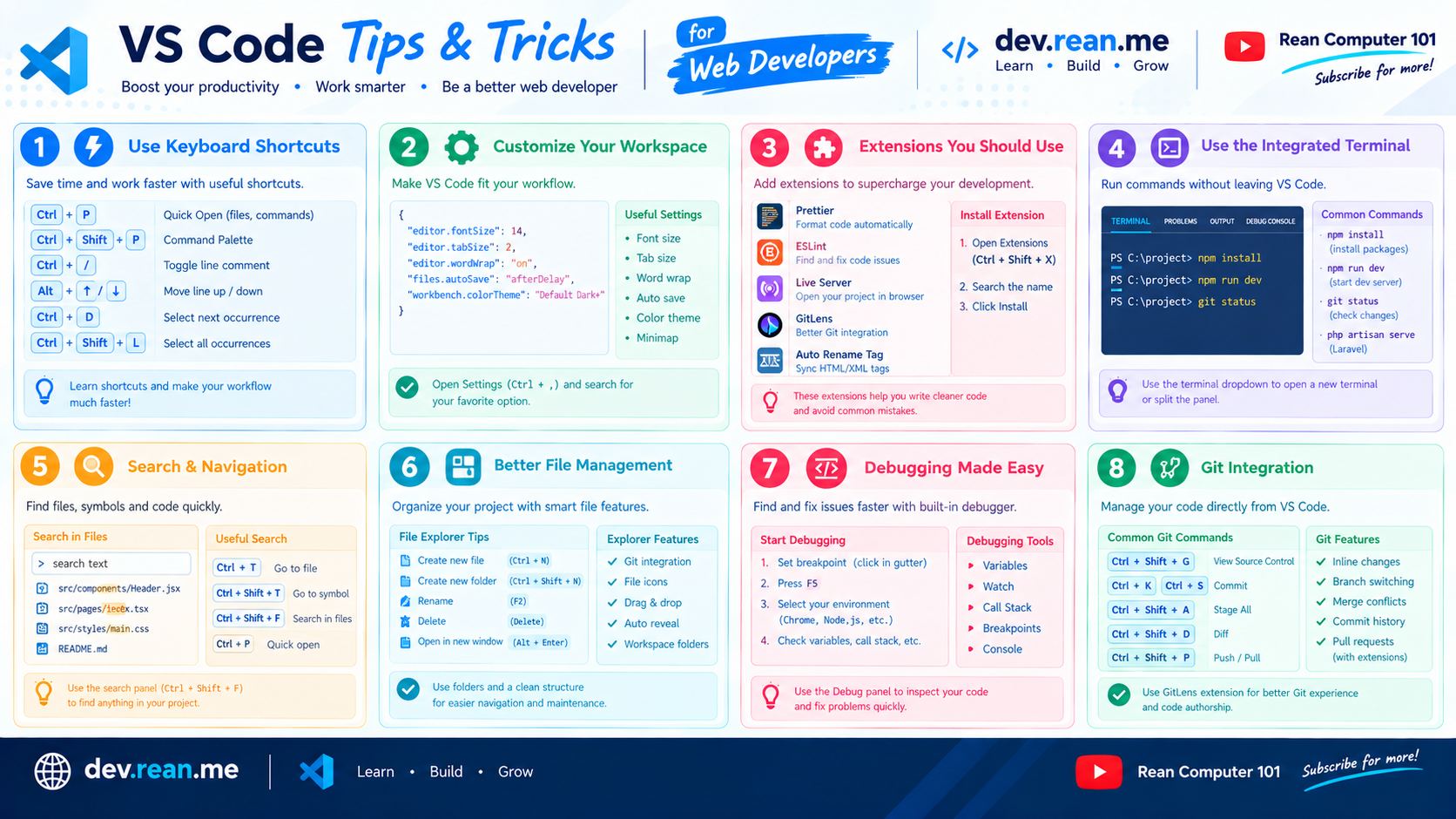 Download 2K Quality in link in the bottom
In this guide, we share 20 powerful VS Code tips, tricks, and keyboard shortcuts every web developer should master in 2026.
💡 No plugins required! All of these features are built directly into VS Code out of the box!
If you want to explore more developer tools and language shorthands:
- ⚡ VS Code HTML Shorthand (Emmet) Guide
- 🎨 VS Code CSS Shorthand (Emmet) Guide
- 📜 VS Code JavaScript Shorthand & Snippets Guide
- 🛠️ 15 Essential VS Code Extensions for Frontend Developers
1. Open Command Palette (Ctrl + Shift + P / Cmd + Shift + P)
The Command Palette is the central nervous system of VS Code. Instead of searching through menus, you can access every single command, setting, and extension action from one quick search bar.
- Shortcut:
Ctrl + Shift + P(Windows) /Cmd + Shift + P(Mac) - Useful Commands to Try:
Preferences: Open User Settings (JSON)Change Language ModeFormat DocumentDeveloper: Reload Window
2. Quick File Open & Search (Ctrl + P / Cmd + P)
Forget clicking through complex folder trees in the left sidebar! Use Quick Open to jump to any file in your project instantly.
- Shortcut:
Ctrl + P(Windows) /Cmd + P(Mac) - Pro Tips:
- Type
filenameto jump directly to that file. - Type
@to jump to a specific function or class inside current file. - Type
:followed by a line number (e.g.:42) to jump straight to line 42!
- Type
3. Multi-Cursor Editing (Alt + Click / Option + Click)
Place multiple cursors anywhere in your file to type, edit, or delete on multiple lines simultaneously.
- How to use: Hold down
Alt(Windows) orOption(Mac) and left-click at different places in your editor. - Example: Add
class="card"to multiple HTML tags at once without repeating keystrokes!
4. Select Next Matching Word (Ctrl + D / Cmd + D)
Want to rename a variable or HTML class name across a section of code? Place your cursor on a word and press Ctrl + D to highlight the next matching instance.
- Shortcut:
Ctrl + D(Windows) /Cmd + D(Mac) - Pro Tip: Keep pressing
Ctrl + Dto select third, fourth, and subsequent matching words one by one. PressCtrl + KCtrl + Dto skip an instance!
5. Select All Matching Occurrences (Ctrl + Shift + L / Cmd + Shift + L)
If you want to edit every matching instance of a highlighted word in the entire file at once, press Ctrl + Shift + L.
- Shortcut:
Ctrl + Shift + L(Windows) /Cmd + Shift + L(Mac) - Use Case: Rename a CSS variable or JavaScript function name instantly across all lines.
6. Move Lines Up or Down (Alt + Up/Down)
Reordering lines of code usually requires cut and paste. In VS Code, you can move any line (or highlighted block of code) up or down instantly.
- Shortcut:
Alt + Up ArroworAlt + Down Arrow(Windows/Linux) /Option + Up/Down(Mac) - Use Case: Reorder HTML
<li>items, CSS properties, or array elements effortlessly.
7. Duplicate Line Up or Down (Shift + Alt + Down)
Need to copy a line or element right below itself? Stop using Ctrl+C and Ctrl+V!
- Shortcut:
Shift + Alt + Down Arrow(Windows) /Shift + Option + Down(Mac) - Use Case: Duplicate table rows
<tr>, list items<li>, or CSS rules in 1 second.
8. Integrated Terminal Toggle (Ctrl + ~)
VS Code has a full built-in terminal window so you can run npm run dev, git status, or Node scripts without switching windows.
- Shortcut:
Ctrl + ~(Backtick key) - Pro Tip: Press
Ctrl + Shift + ~to open a new split terminal panel side-by-side!
9. Split Editor Layout (Ctrl + \)
Working on HTML, CSS, and JavaScript simultaneously? Split your workspace into multiple side-by-side code tabs.
- Shortcut:
Ctrl + \(Windows) /Cmd + \(Mac) - Pro Tip: Drag tabs between windows or use
Ctrl + 1,Ctrl + 2,Ctrl + 3to switch focus between split panels!
10. Zen Mode — Distraction-Free Coding (Ctrl + K Z)
When you need total focus without sidebars, status bars, or tab headers, enter Zen Mode.
- Shortcut: Press
Ctrl + K, release, then pressZ. - Exit: Press
Esctwice to return to normal editor view.
11. Column / Box Selection (Shift + Alt + Drag)
Select a square block of text vertically across multiple lines.
- How to use: Hold
Shift + Alt(Windows) orShift + Option(Mac), then click and drag your mouse vertically. - Use Case: Perfect for cleaning up indented code lists, quotes, or trailing commas!
12. Auto Format Document (Shift + Alt + F)
Instantly align misaligned HTML tags, CSS braces, and JavaScript indentation according to clean code rules.
- Shortcut:
Shift + Alt + F(Windows) /Option + Shift + F(Mac) - Pro Tip: Enable Format on Save in
settings.json:{ "editor.formatOnSave": true }
13. Fold / Unfold Code Blocks (Ctrl + Shift + [)
Collapse long functions, HTML section blocks, or large objects so you can focus on the code that matters.
- Fold:
Ctrl + Shift + [(Windows) /Cmd + Option + [(Mac) - Unfold:
Ctrl + Shift + ](Windows) /Cmd + Option + ](Mac) - Fold All:
Ctrl + KthenCtrl + 0 - Unfold All:
Ctrl + KthenCtrl + J
14. Go to Specific Line Number (Ctrl + G)
When a browser console or terminal error flags an error at line 142, jump straight there instantly.
- Shortcut:
Ctrl + G(Windows) /Cmd + G(Mac) → type142→ pressEnter.
15. Breadcrumbs Navigation
At the top of your editor window, VS Code displays a Breadcrumbs bar showing your exact folder, file, class, function, and HTML element location.
- Toggle Breadcrumbs:
Ctrl + Shift + . - Use Case: Click any parent tag in the breadcrumb bar to jump straight to that parent element!
16. Auto Save Files on Focus Change
Stop losing changes when your browser reloads! Configure VS Code to automatically save files whenever you switch windows or click away.
Open settings.json and set:
{
  "files.autoSave": "onFocusChange"
}
17. Built-in Color Picker & Preview
Hover over any HEX (#3b82f6), RGB (rgb(59, 130, 246)), or HSL color string inside CSS or HTML. A color square and interactive color picker slider will appear automatically!
- Pro Tip: Click the color bar at the top of the picker window to convert HEX colors into RGB or HSL formats!
18. Side-by-Side Markdown Preview (Ctrl + K V)
Editing .md or .mdx files? Open a live visual Markdown preview window directly beside your code editor.
- Shortcut: Press
Ctrl + K, then pressV(Windows) /Cmd + K V(Mac).
19. Workspace Settings (.vscode/settings.json)
Share project-specific settings (like Prettier formatting rules, tab width, and linting) across your entire team.
- How: Create a
.vscodefolder in your project root, then add asettings.jsonfile inside it. Settings inside this file automatically override default settings for anyone who opens the project!
20. Built-in Git Timeline & Diff View
Track when lines of code were modified without leaving VS Code.
- Features:
- Click on the Timeline panel in the lower left file explorer to view past commits for the current file.
- Click on the modified color bar in the line gutter to see diff changes and revert specific lines with one click!
Cheat Sheet — Top 10 Keyboard Shortcuts for Web Developers
| Action | Windows / Linux | Mac |
|---|---|---|
| Command Palette | Ctrl + Shift + P | Cmd + Shift + P |
| Quick File Search | Ctrl + P | Cmd + P |
| Multi-Cursor Click | Alt + Click | Option + Click |
| Select Next Match | Ctrl + D | Cmd + D |
| Select All Matches | Ctrl + Shift + L | Cmd + Shift + L |
| Move Line Up/Down | Alt + Up/Down | Option + Up/Down |
| Duplicate Line | Shift + Alt + Down | Shift + Option + Down |
| Toggle Terminal | Ctrl + ~ | Ctrl + ~ |
| Format Document | Shift + Alt + F | Option + Shift + F |
| Split Window | Ctrl + \ | Cmd + \ |
📥 Download Cheat Sheet Image
📥 Download 2K Quality Image Here
📚 Read More Developer Tools Guides
Level up your developer workflow with our related tutorials:
- ⚡ VS Code HTML Shorthand (Emmet) Guide
- 🎨 VS Code CSS Shorthand (Emmet) Guide
- 📜 VS Code JavaScript Shorthand & Snippets Guide
- ⚛️ VS Code ReactJS Shorthand & Snippets Guide
- 🐘 VS Code PHP Shorthand & Snippets Guide
- 🛠️ Essential VS Code Extensions for Frontend Development
- 🔤 Best Free Coding Fonts for VS Code
Happy coding! 🎉 Master these 20 VS Code tips to write code faster and more efficiently every day!
HTML & Web Development Complete Tutorial Series & Course List
Master HTML5 tags, forms, tables, dropdowns, lists, Google Fonts, VS Code tools, and web development fundamentals step-by-step with 11 complete tutorials.